Domains
Search and register a domain
1. Search for a name
- Go to Domains and select Register domain. You can also use Search a domain on the dashboard.
- On Find your perfect domain, type the name you want, for example
yourbusiness, and select Search. You don't need to type an extension.
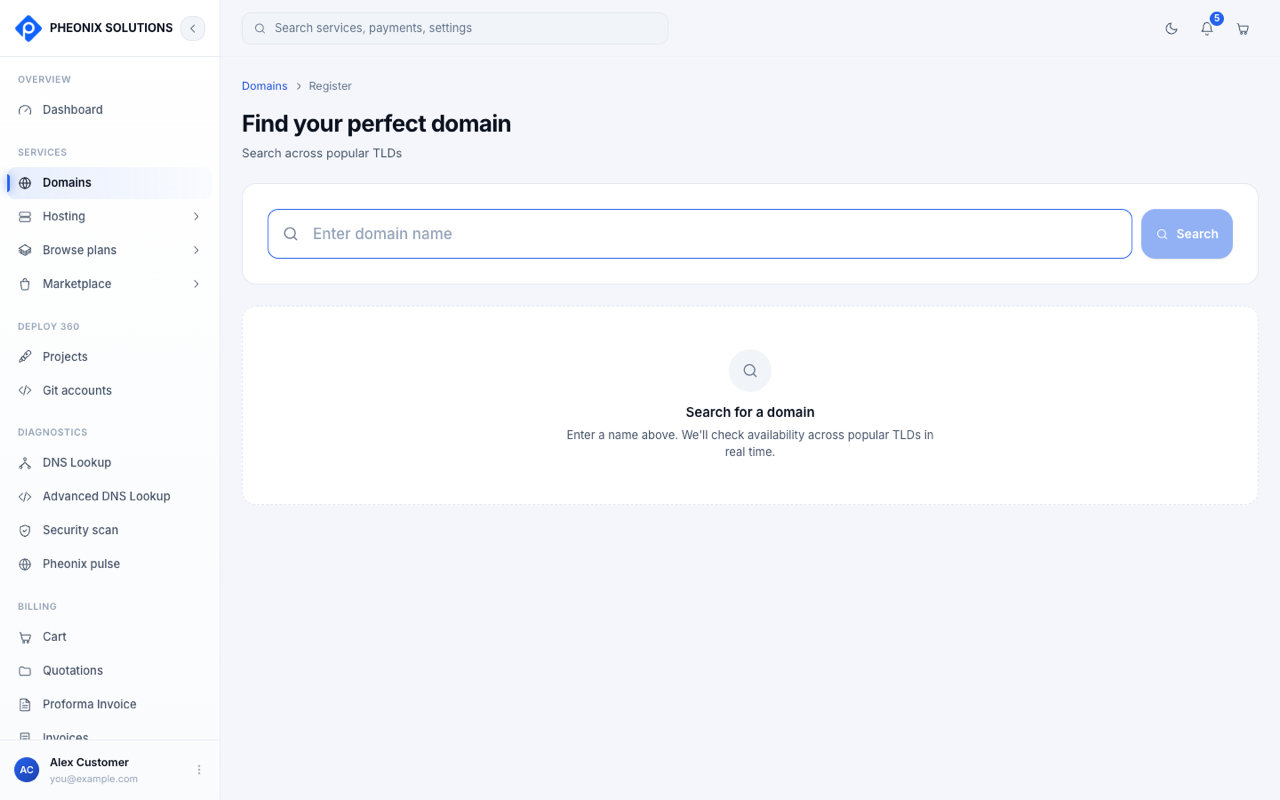
We check your name across all the extensions we offer, such as .com, .in, .co.in, .net, .org, .shop, .online and .cloud, in real time.
2. Read the results
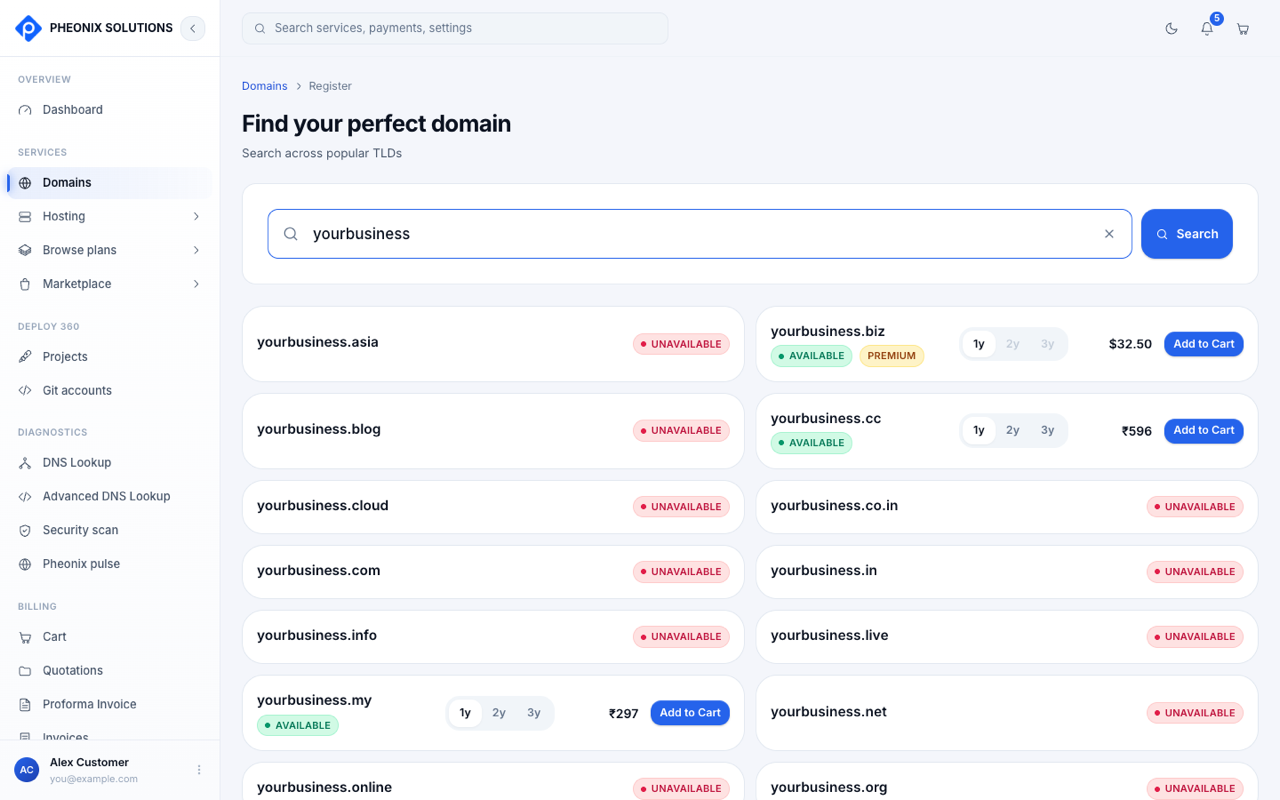
| Label | Meaning |
|---|---|
| Available | You can register it. The price and the Add to Cart button are shown. |
| Premium | Available, but at a higher price set by the registry. Some premium names can only be registered for one year at a time. |
| Unavailable | Someone already owns it. Try a different name or extension. |
| In cart | You've already added it to your cart |
3. Choose how long to register it
Each available domain has a 1y / 2y / 3y picker. Choose how many years to register it for, and the price updates. Options that aren't offered for that extension are greyed out.
4. Add to cart and pay
- Select Add to Cart next to each domain you want. You can add several.
- Open the Cart (top-right icon) and check the order summary.
- Select Proceed to checkout and pay on the secure payment page. See Cart and checkout.
- You return to the app, which confirms your payment and lets you download the invoice.
tip
Domains in your cart are reserved for you for a short time while you check out. If you close the payment page, your cart is saved, so you can try again.
5. Your new domain
The domain now appears under Domains.
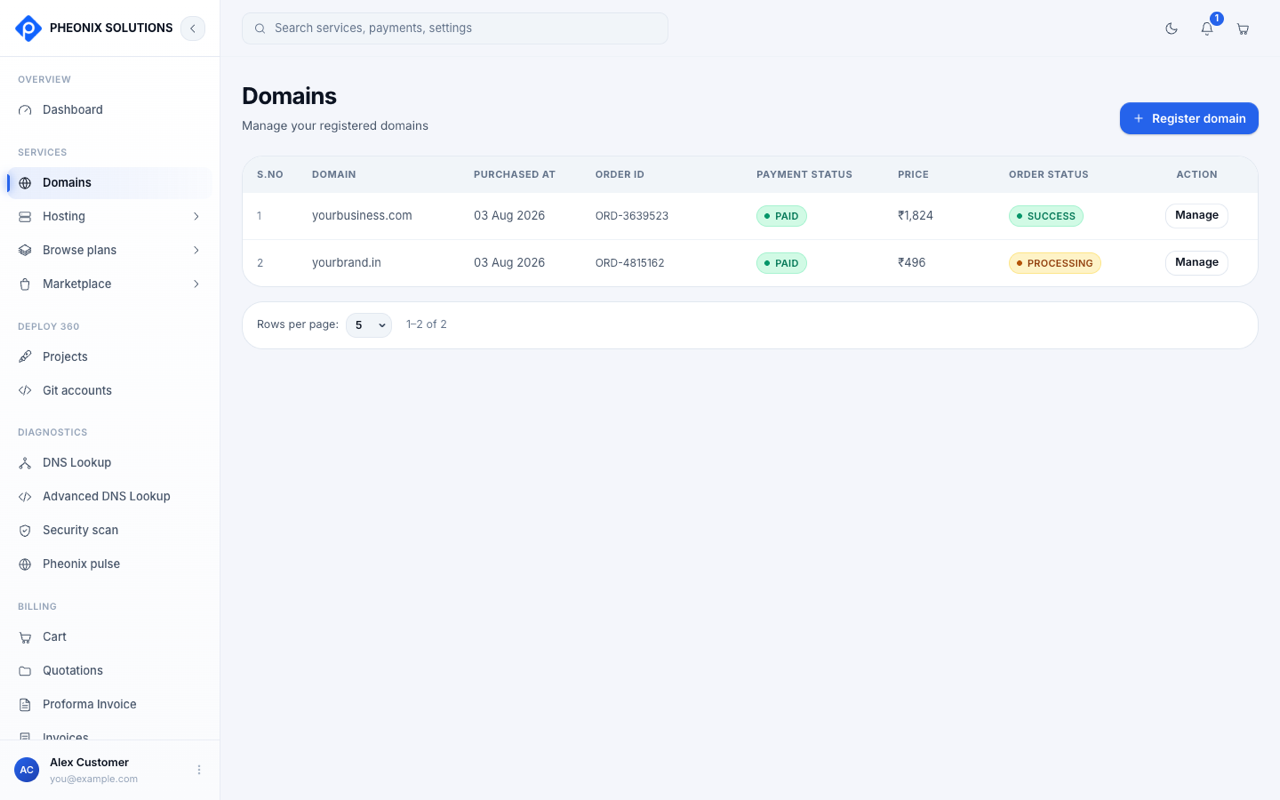
| Column | Meaning |
|---|---|
| Domain | The domain name |
| Purchased at | The date you bought it |
| Order ID | Quote this if you contact support |
| Payment status | Paid, Pending or Failed |
| Price | What you paid, including the years you chose |
| Order status | See below |
| Action | Manage: open the domain's settings |
Order status
| Status | Meaning |
|---|---|
| Processing | Payment received; we're registering the domain with the registry. This usually takes a few minutes. |
| Success | The domain is registered and yours to use |
| Pending | Waiting for payment or for the registry |
| Failed | The registration didn't go through. Contact support with the order ID. |
| Cancelled / Expired | The order was cancelled, or the registration period has ended |
Next: Manage your domain. Set its nameservers, contact details and privacy.