Marketplace
One-click apps
The Marketplace sets up ready-to-use applications on their own cloud server. Today you can choose WordPress, for blogs and websites, or Magento, for online stores.
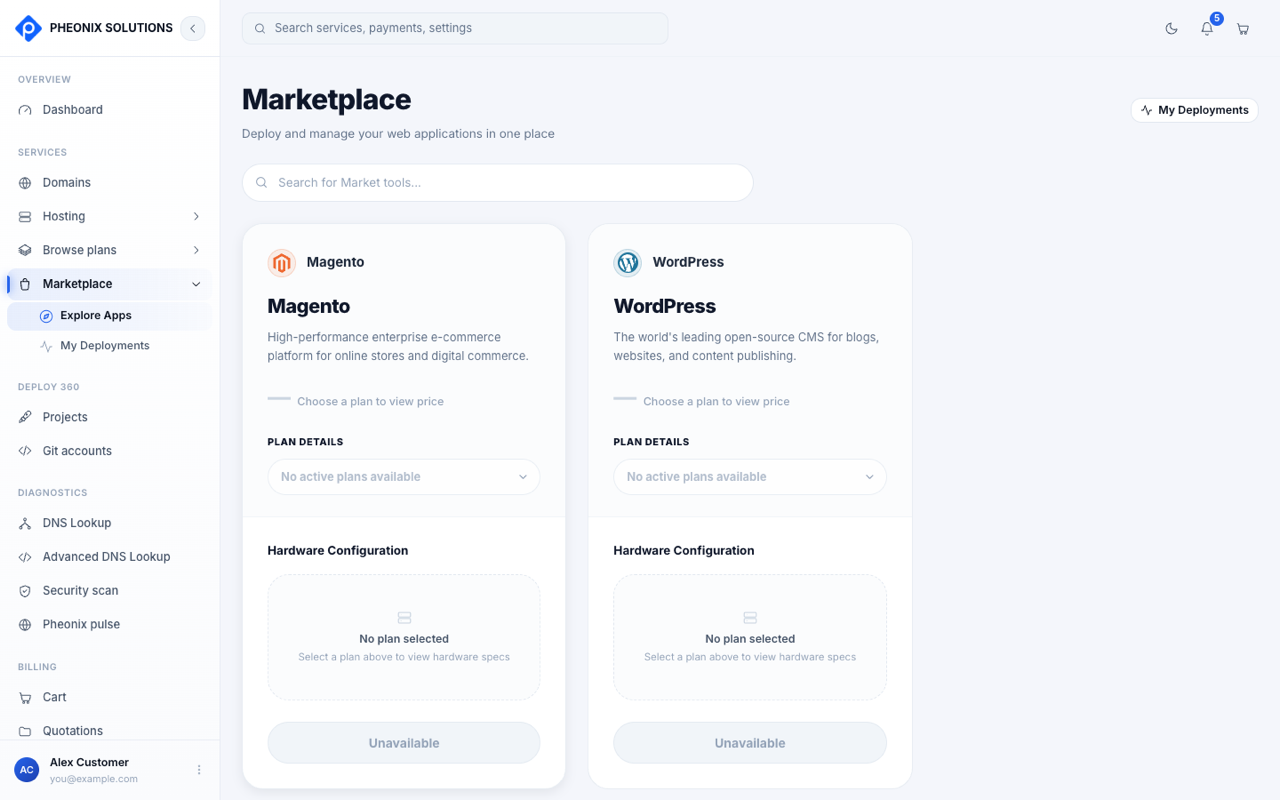
Launch an app
- Go to Marketplace and choose WordPress or Magento.
- Pick a plan. The hardware configuration (CPU, memory, storage) is shown for the plan you select.
- Configure the app:
- Set up access: how you'll sign in to the server as
root. Choose an auto-generated SSH key, your own SSH public key, or a root password. - App settings and admin account: the site settings and the administrator login. Tick Use my Pheonix account details to fill them in for you. Passwords need at least 8 characters, or select Auto-Generate.
- Domain: pick a domain you registered with us and its DNS A-record is set up automatically. If you use an external domain, point its A-record at the server's IP address yourself. Until you do, the app is reachable at its public IP address.
- Billing cycle
- Set up access: how you'll sign in to the server as
- Review your configuration, then check out.
The server is then created and the app installed. Full access details are also emailed to you.
My deployments
Go to Marketplace → My Deployments to see your apps.
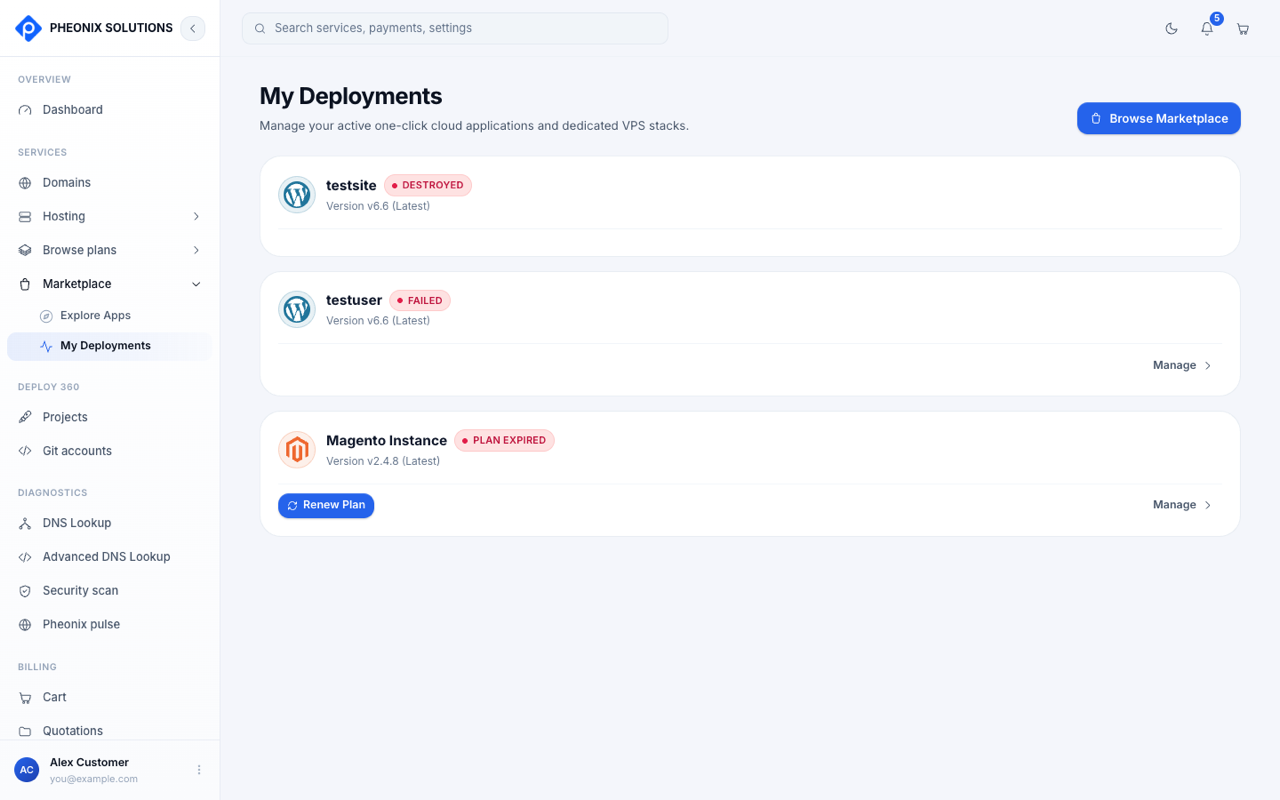
| Status | Meaning |
|---|---|
| Running | The app is live |
| Provisioning | The server and app are still being set up |
| Failed | Setup didn't complete. Contact support with the deployment name. |
| Plan expired | Select Renew plan to keep the app |
| Destroyed | The server no longer exists |
Manage an app
Select Manage on a deployment to see:
- Open App and Open via IP: visit the site.
- Admin Panel URL: the WordPress or Magento admin area.
- Copy IP and the HTTP port.
- SSH command, Linux user and SSH authentication: for signing in to the server. Use Copy SSH command.
- Attach Domain: connect one of your domains, or an external one, to get a friendly URL and an SSL certificate.
- Next renewal: the date your plan renews.