Hosting
Dedicated servers
A dedicated server is a whole physical machine, just for you. Our team sets up the hardware and installs the operating system.
Order a server
- Go to Browse plans → Dedicated, or select Order hosting on the Dedicated page.
- Choose Monthly or Yearly and a plan, then select Add to cart. Plans list the CPU, memory, storage, bandwidth and operating system, plus included services such as free migration.
- Check out.
- Your order shows Pending setup while our team prepares the server. A confirmation email is sent to you, and the server appears on this page once it's ready.
Your server
Go to Hosting → Dedicated.
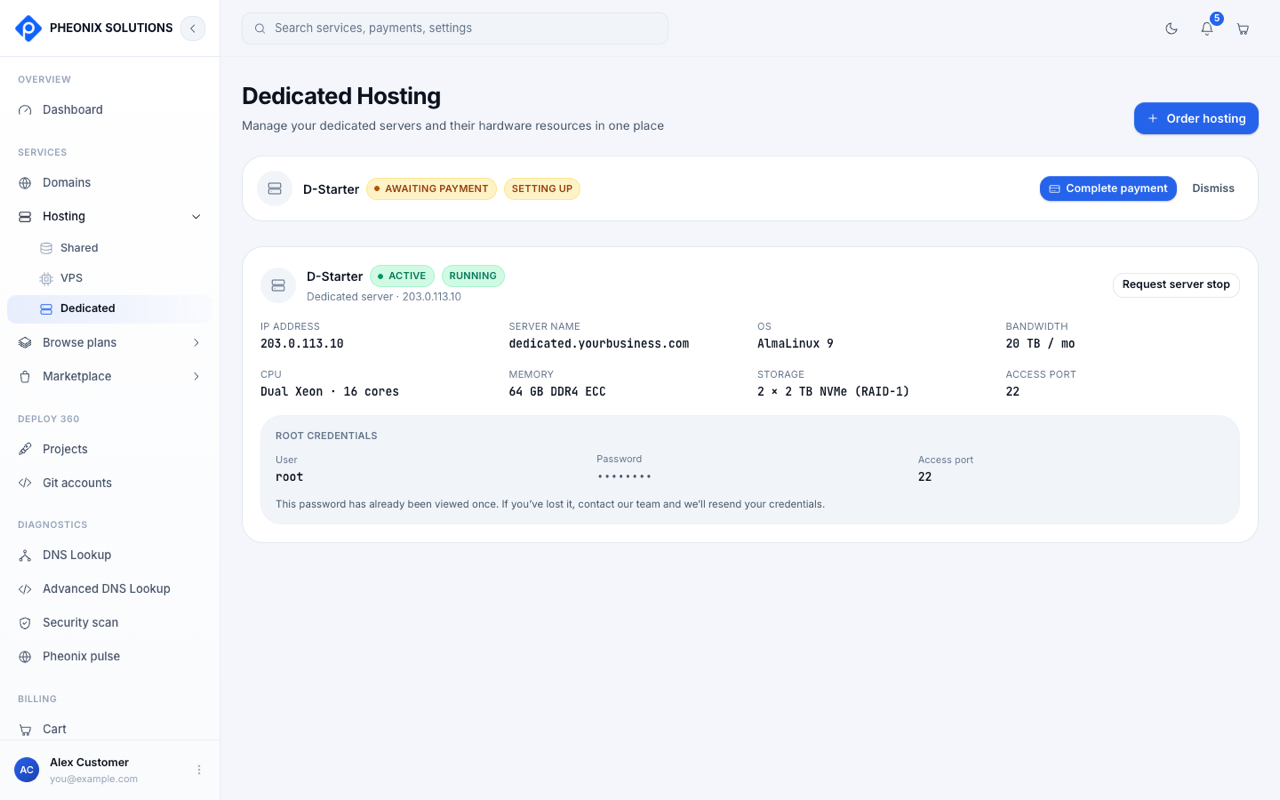
The card header shows the server's name, its status (for example Active) and its power state (Running or Stopped).
| Detail | What it is |
|---|---|
| IP address | The server's public IP address |
| Server name | Its hostname |
| OS | The installed operating system, for example AlmaLinux 9 |
| Bandwidth | Your monthly transfer allowance |
| CPU, Memory, Storage | The hardware, for example dual Xeon CPUs, 64 GB ECC memory, 2 × 2 TB NVMe in RAID-1 |
| Access port | The SSH port to connect on |
Root credentials
The Root credentials box shows the root user, the password (hidden) and the access port.
For security, the root password can be shown only once. When you reveal it, copy it into a password manager straight away. After that the box says This password has already been viewed once. If you lose it, contact our team and we'll resend your credentials.
To connect, run this, replacing <access-port> and <server-ip> with your server's values:
ssh -p <access-port> root@<server-ip>
Change the root password after your first sign-in, and consider setting up SSH keys instead of password sign-in.
Stop or start the server
Our team powers dedicated servers on and off for you.
- Select Request server stop.
- Confirm with Request server stop, or select Keep running to cancel.
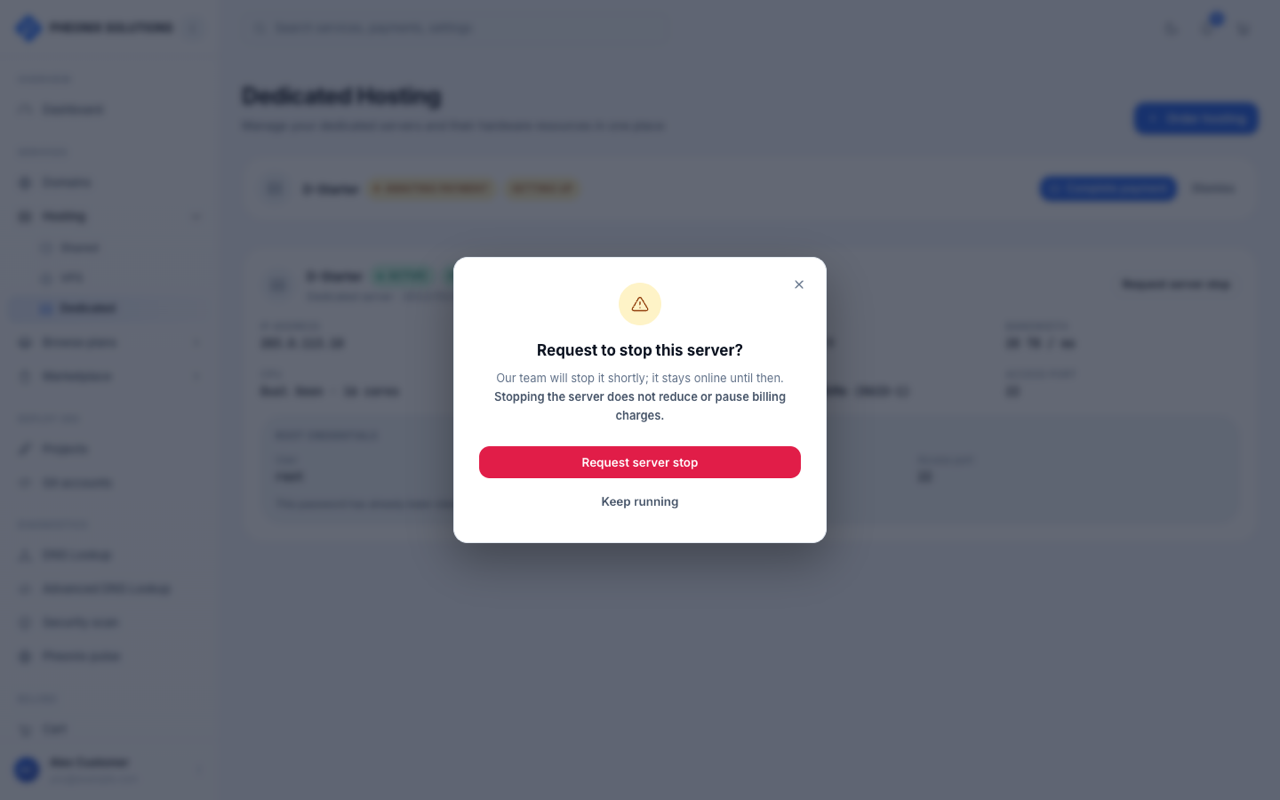
Our team stops the server shortly. It stays online until then. When the server is stopped, the button changes to Request server start, which works the same way.
Stopping the server does not reduce or pause billing. To stop paying for the server, cancel the plan instead. Contact support if you need help.
Renewals
Your dedicated server renews at the end of each billing period. If a renewal isn't paid, the subscription can be suspended, and you lose access to the server until the payment is made. See Invoices, payments and renewals.