Get started
Sign in and reset your password
Sign in
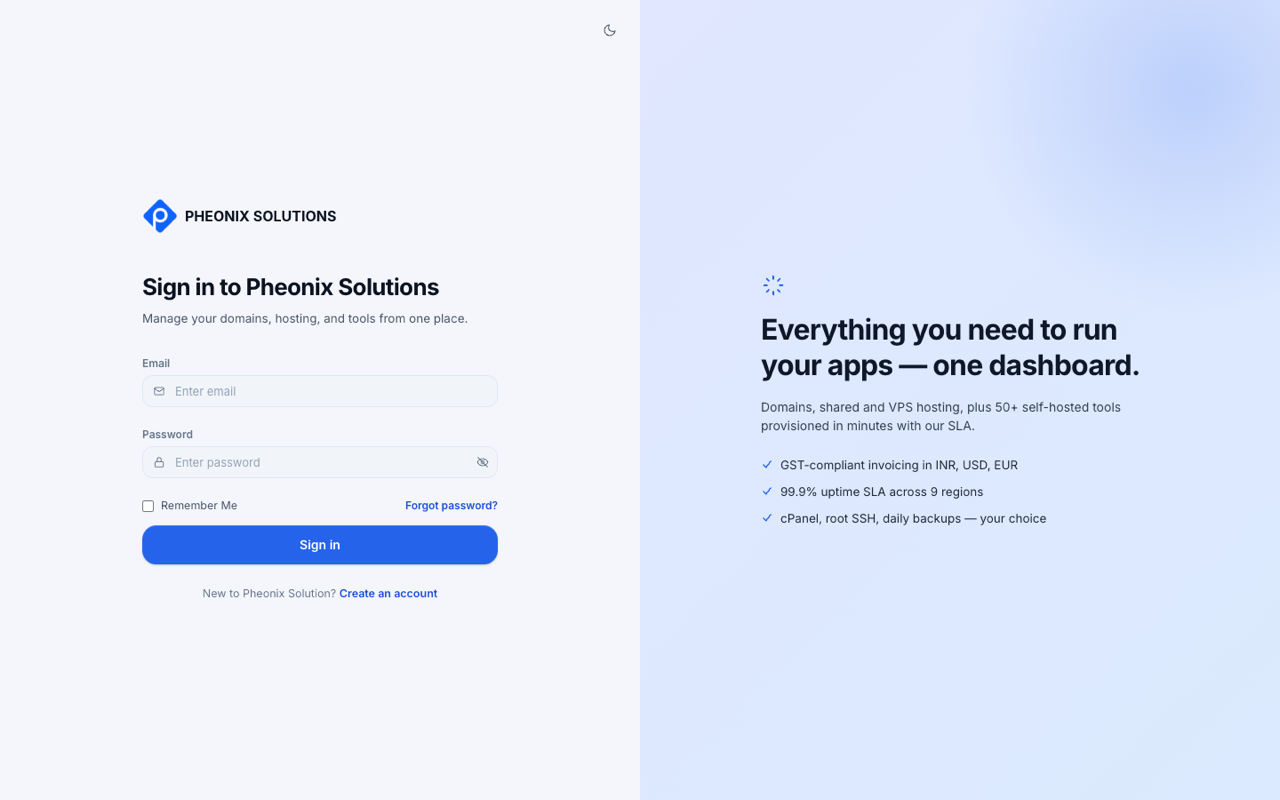
- Open app.pheonixsolutions.com/login.
- Enter your Email and Password.
- Tick Remember me if you're on your own device and want to stay signed in.
- Select Sign in.
Customers and Pheonix staff use the same sign-in page. The app opens the right workspace for your account.
Two-factor authentication
If you've turned on two-factor authentication, you're asked for a code after your password. Open your authenticator app, then enter the 6-digit verification code it shows. To turn it on or off, see Settings → Security.
Forgot your password?
- On the sign-in page, select Forgot password?
- Enter your email and select Send reset link.
- If an account exists for that email, a reset link arrives in your inbox. Open it.
- Enter your new password twice and save it. You're taken back to the sign-in page.
note
Reset links expire. If you see This reset link is invalid or has expired, request a new one.