Hosting
VPS hosting
A VPS (virtual private server) is your own server with dedicated vCPU, memory and SSD storage, and full root access.
Set up a new VPS
- Go to Browse plans → VPS and select Configure VPS on the plan you want.
- Follow the four steps. The panel on the right keeps a running summary of your choices.
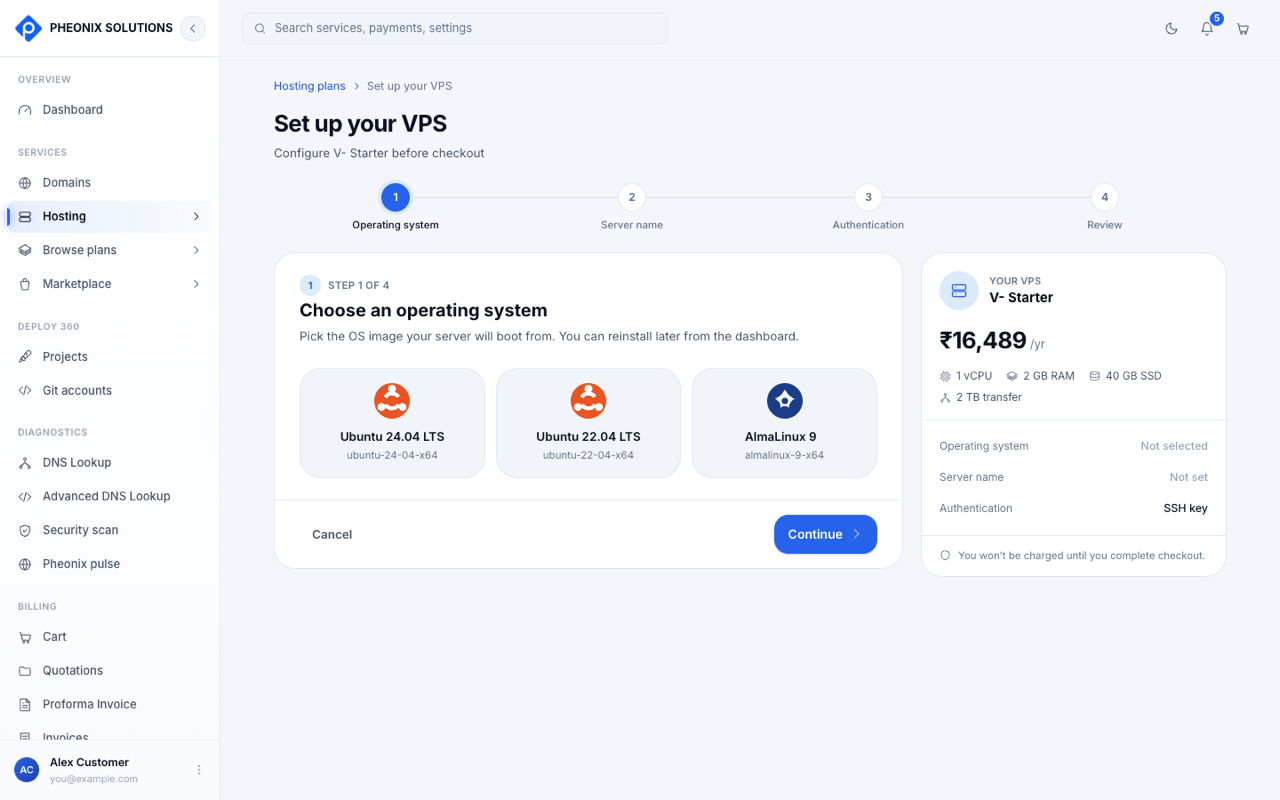
| Step | What you choose |
|---|---|
| 1. Operating system | The OS image your server boots from, for example Ubuntu 24.04 LTS, Ubuntu 22.04 LTS or AlmaLinux 9 |
| 2. Server name | A friendly label you'll recognise, for example vps.yourbusiness.com. We turn it into a valid hostname automatically. |
| 3. Authentication | How you sign in as root (see below) |
| 4. Review | Check everything, go back to change anything, then continue to checkout |
You aren't charged until you complete checkout. After payment, your server is created, usually within a few minutes.
Choosing how to sign in (authentication)
| Option | When to use it |
|---|---|
| SSH key (auto-generated) | Easiest. We create a secure key pair for you. Keep the private key somewhere safe. |
| SSH key (your own) | You already have a key. Paste your public key, which starts with ssh-ed25519 or ssh-rsa. |
| Auto-generated root password | You'd rather sign in with a password |
Never paste a private key. If the app says That doesn't look like a valid SSH public key, check that you copied the .pub file.
Your servers
Go to Hosting → VPS.
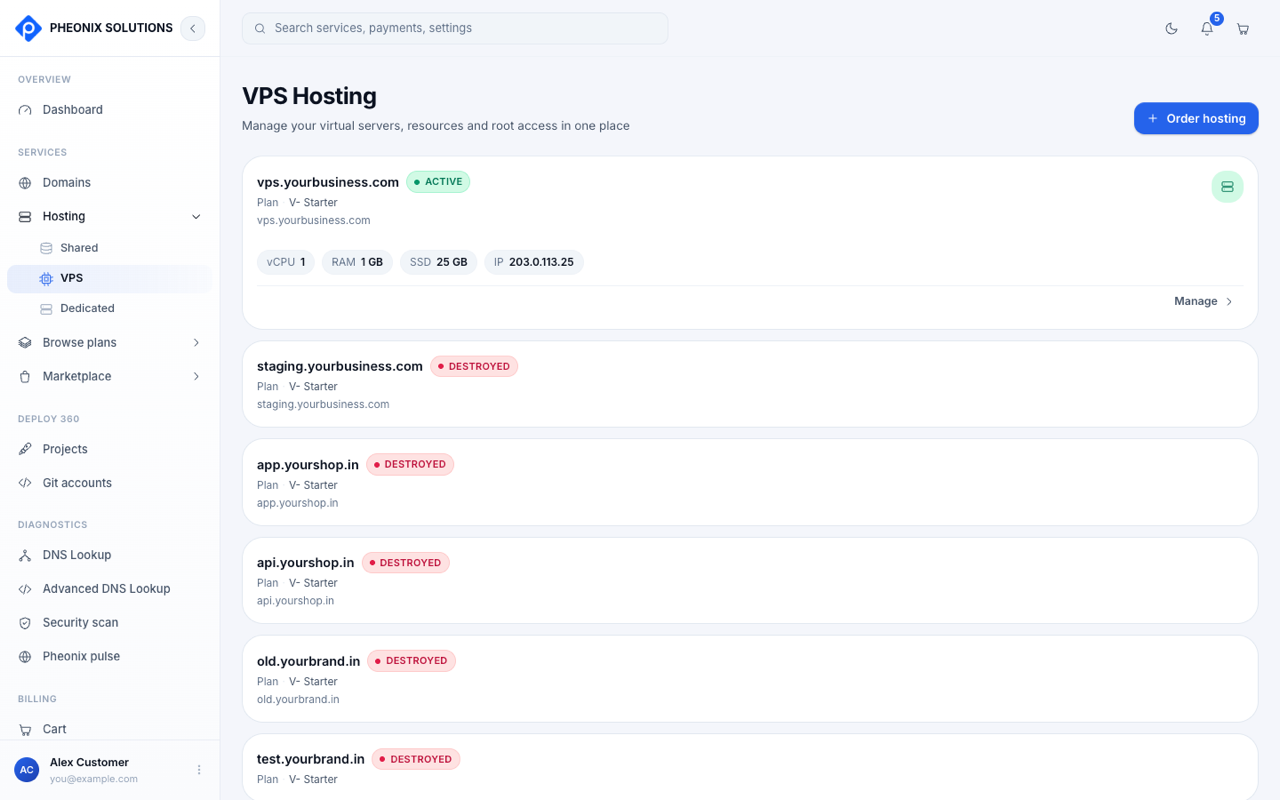
Each server card shows its name, status, plan, and its resources: vCPU, RAM, SSD and public IP address. Select Manage to open the server.
| Status | Meaning |
|---|---|
| Active | The server exists and the plan is paid up |
| Suspended | The renewal hasn't been paid. Pay the invoice to restore access. |
| Past due | A payment is overdue |
| Canceled / Terminated | The subscription has ended |
| Destroyed | The server has been deleted and no longer exists |
Manage a server
The server page has two tabs: Overview and Insights.
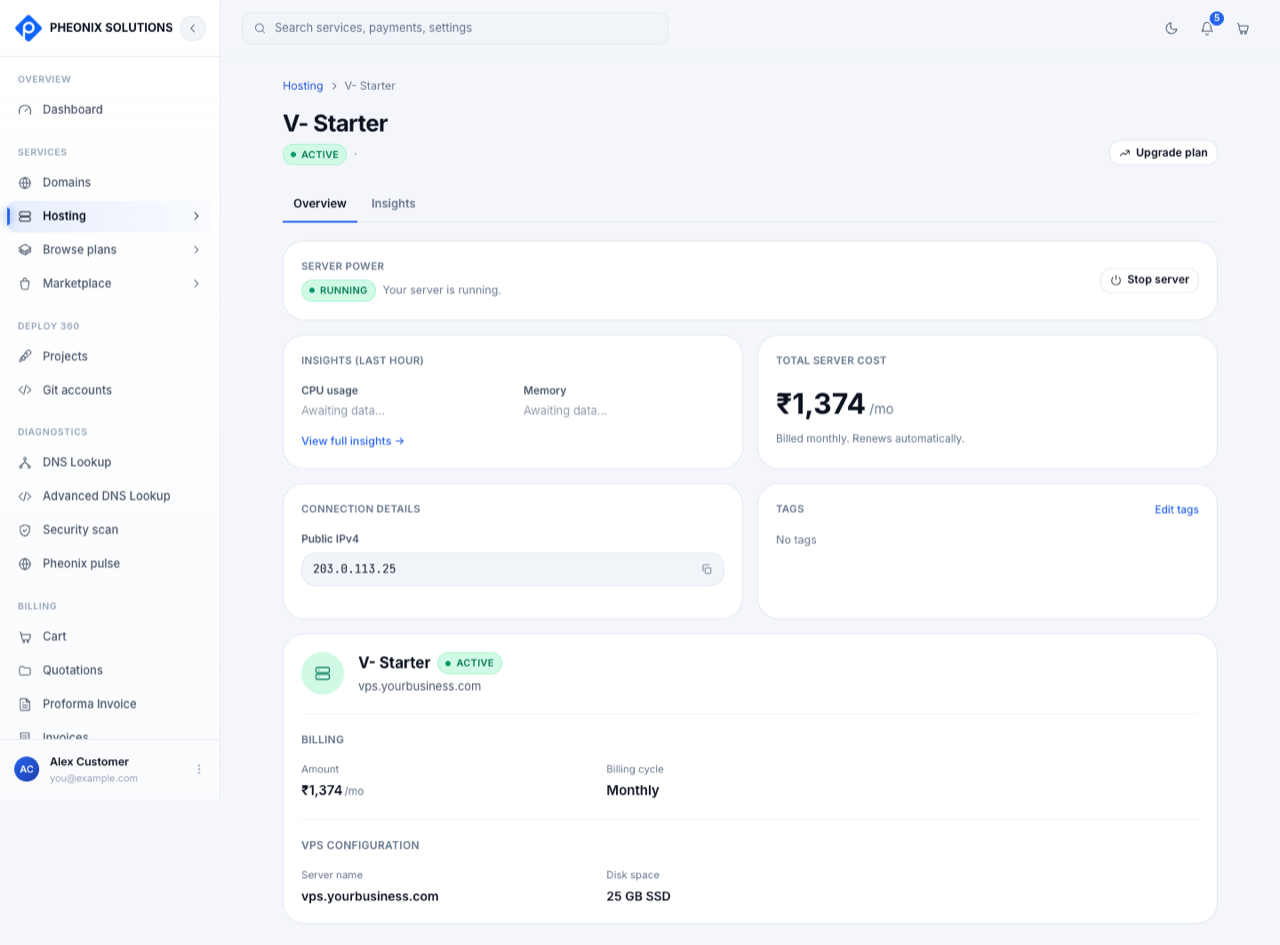
Server power
Shows whether the server is Running or Stopped.
- Stop server powers the server off straight away. Your website and apps go offline until you start it again.
- Start server powers it back on.
Stop server acts immediately; there's no confirmation step. Make sure nothing important is running before you select it.
Insights (last hour)
A quick look at CPU usage and Memory over the last hour. Select View full insights for the charts (see Insights). Awaiting data… means monitoring has just started and the first readings haven't arrived yet.
Total server cost
What the server costs you per billing period.
Connection details
The server's Public IPv4 address. Select the copy icon to copy it. Connect with:
ssh root@<your-server-ip>
Sign in with the SSH key or root password you chose during setup.
Tags
Labels to organise your servers, for example production or client-a. Select Edit tags to add or remove them, then Save Tags.
Billing
- Amount and Billing cycle (monthly or yearly).
- Next renewal: the date the plan renews. If you've cancelled, this shows Cancels on instead.
- Cancel subscription: choose Cancel at period end to keep the server until the end of what you've paid for, or Cancel immediately. Select Keep subscription to change your mind.
VPS configuration
The server name, disk space, and the authentication method (SSH key or password) you chose.
Insights
The Insights tab shows detailed graphs. Choose a Period of 1h, 6h or 24h, and hover over a chart to see exact values.
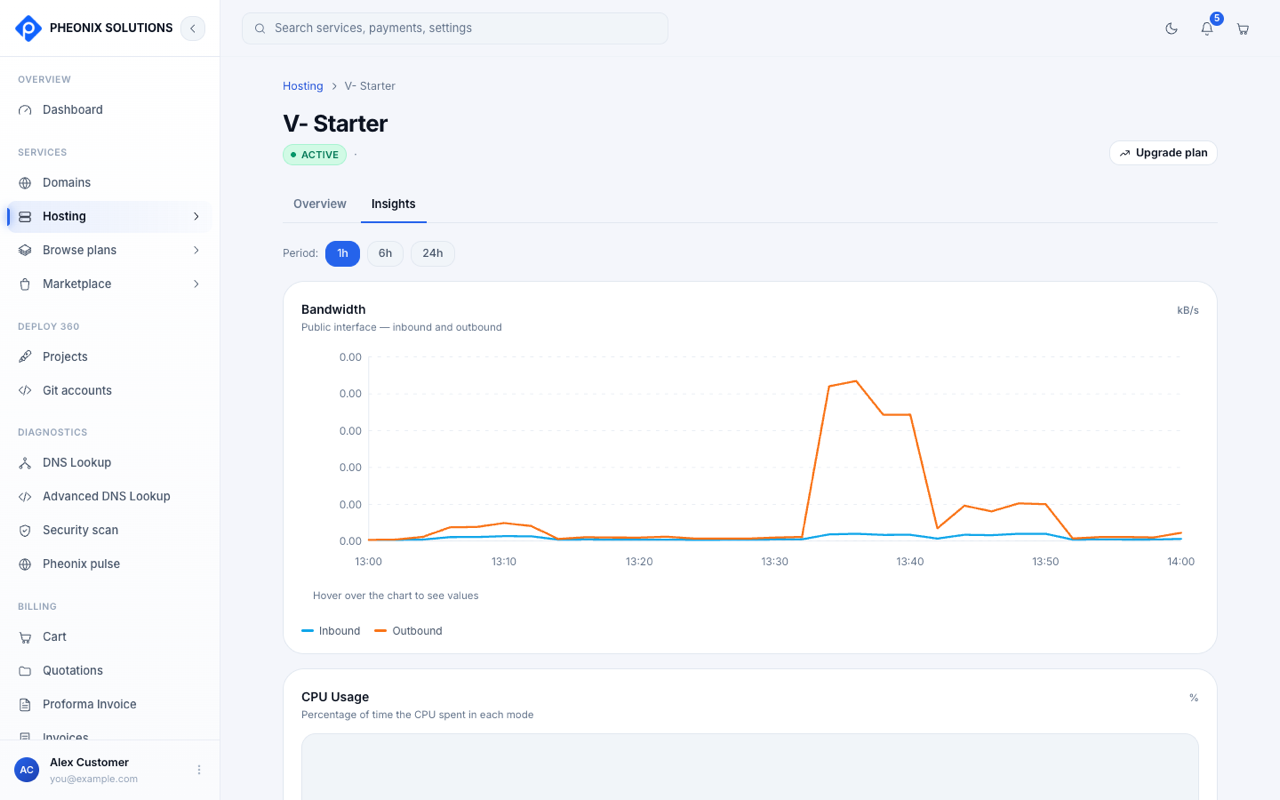
| Chart | Shows |
|---|---|
| Bandwidth | Traffic on the public interface, inbound and outbound (kB/s) |
| CPU Usage | Percentage of time the CPU spent in each mode |
| Disk Usage | Space used on the root filesystem |
If a chart says Contact support to enable detailed metrics for this server, monitoring isn't set up yet. Contact support and we'll turn it on.
Upgrade your plan
Need more CPU, memory or disk? Select Upgrade plan.
Upgrading resizes your server, and a resize can only happen while the server is powered off. If it's running, you're asked to stop it first.
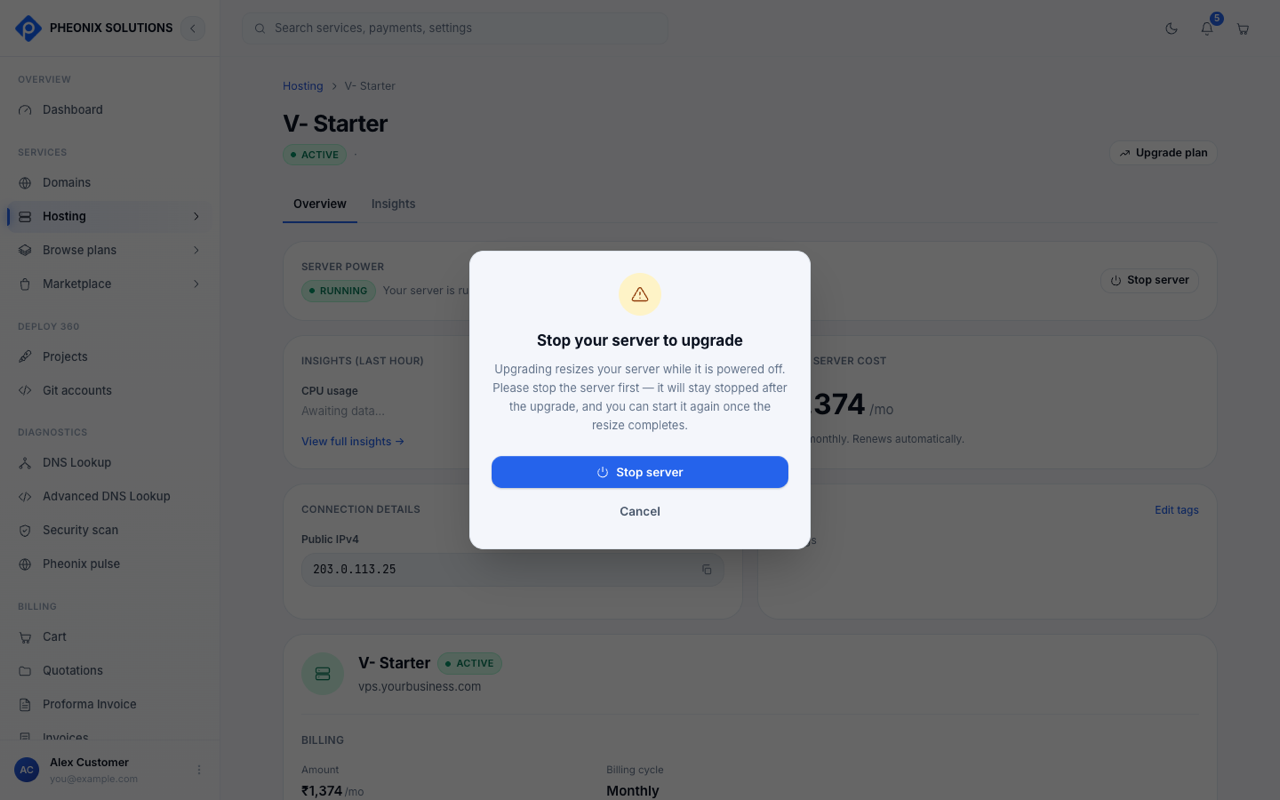
- Select Upgrade plan. If the server is running, select Stop server in the dialog. Select Cancel to back out.
- Choose the new plan and billing period, then pay.
- The server is resized. It stays stopped after the resize. Start it again from Server power once the upgrade completes.
There's a small chance of data loss during a resize. Back up your important files and databases before upgrading.
- Only bigger plans are offered; there's no downgrade.
- Only one upgrade can run at a time. While one is in progress, the server shows Upgrade in progress / Resizing.