Deploy 360
Databases
Set up a database in the wizard's Database step, or later in Settings → Database. You have three choices:
| Option | When to use it |
|---|---|
| Create a database | You want us to run one for you, next to your app, on your site's server |
| Connect my database | You already have a database somewhere else, such as a cloud database service |
| No database | Your app doesn't need one. You can add one later. |
Create a database
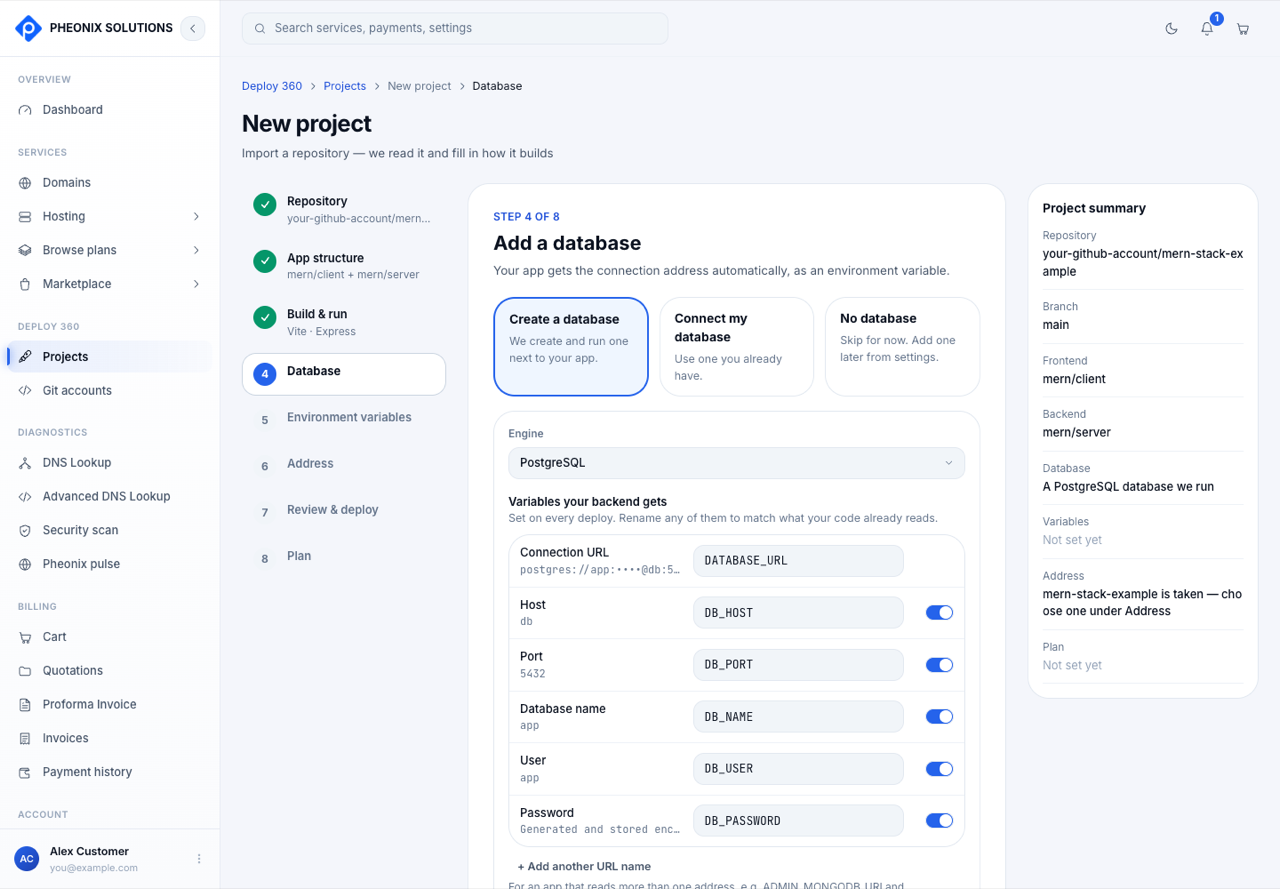
Pick an Engine:
| Engine | Version |
|---|---|
| PostgreSQL | 16 |
| MySQL | 8.4 |
| MongoDB | 7 |
| Redis | 7 |
The database runs on your project's own server and starts with your next deploy.
- Only your app can reach it. It isn't exposed to the internet.
- We generate the password and store it encrypted. You never need to type it, because your app receives it automatically.
- Each environment gets its own separate database. Staging data never mixes with Production.
Connect my database
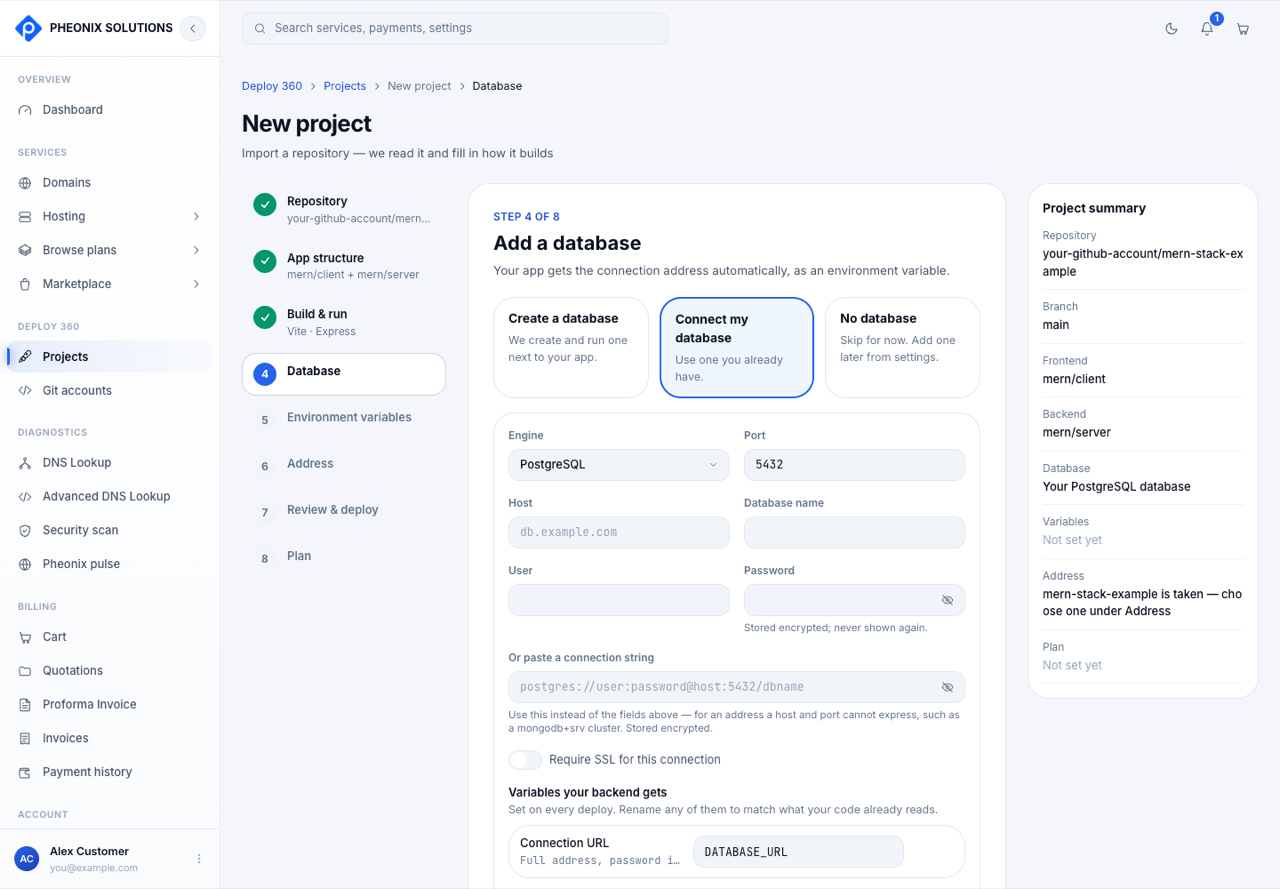
Enter either the individual details or a full connection string:
- Engine: PostgreSQL, MySQL, MariaDB, MongoDB, Redis or Other. The Port follows the engine's default.
- Host, Database name, User and Password. The password is stored encrypted and never shown again.
- Or paste a connection string, for example
postgres://user:password@host:5432/dbname. Use this for addresses that a host and port can't express, such as amongodb+srv://cluster. - Require SSL for this connection: turn this on if your database provider requires encrypted connections. Most cloud providers do.
We can't test the connection until your app is running. If your app can't connect after a deploy, check the details here, and make sure your database provider allows connections from your site's server. Its IP address is under Settings → Advanced.
How your app gets the connection details
Under Variables your backend gets, you can see exactly which environment variables your app receives. They're set on every deploy, during the build and while the app runs.
| Variable | Contains |
|---|---|
DATABASE_URL | The full connection address |
DB_HOST, DB_PORT, DB_NAME, DB_USER, DB_PASSWORD | Each part separately (not for Redis) |
- Rename any of them to match what your code already reads, for example
MONGODB_URI. Turn off the ones you don't need. - + Add another URL name gives the same address under extra names, for apps that read more than one.
- A pasted connection string provides
DATABASE_URLonly. - If you also set a variable with the same name under Environment variables, your value wins, and the app shows a warning.
The Database tab
When we run the database for you, the project gets a Database tab.
- Browse: look through tables (PostgreSQL, MySQL), collections (MongoDB) or keys (Redis).
- Query: run one statement at a time and see up to 200 rows. The console is read-only unless you turn on Allow changes.
- Backups: see below.
Backups
- Select Back up now to take a backup. The last 5 manual backups are kept.
- Download a backup to keep a copy. The download link expires after a while.
- Restore a backup by typing
RESTOREto confirm. We take a fresh backup first, so you can undo a restore. Restore isn't available for Redis.
Backups are stored on your site's server. If the server is removed, for example after 30 days unpaid, the backups go with it. Download any backup you need to keep.
Change or remove the database
Go to Settings → Database, choose a different option, and select Save and redeploy. Changes apply on the next deploy.
- Switching to No database or to another engine stops the old database after the next successful deploy. Its data is kept on the server.
- Removing the environment or the project deletes its database, data and backups for good.