Deploy 360
Environments and settings
Environments
Every project starts with a Production environment. To add another, for example Staging deploying from a develop branch:
- Open the environment switcher next to the project name and select Add environment.
- Choose the Type (Production, Staging, Development, Preview or Custom), a Name and an Identifier.
- Choose What does this environment run?: frontend and backend, frontend only, backend/API only, or static site.
- Optionally set Deploy from branch.
Each plan includes up to 2 environments. All of a project's environments run on the same server, but each one has its own address, variables and database.
Settings
Open the Settings tab. Changes to build settings show a bar, Unsaved changes — they apply on the next deploy, with Discard, Save and Save and redeploy.
General
- Environment name, type and identifier, and the free Platform URL (select Copy to copy it).
- Source: the repository and the Deploy from branch setting. Select Change to use a different repository.
- Make default: choose which environment the project opens on.
Build & run
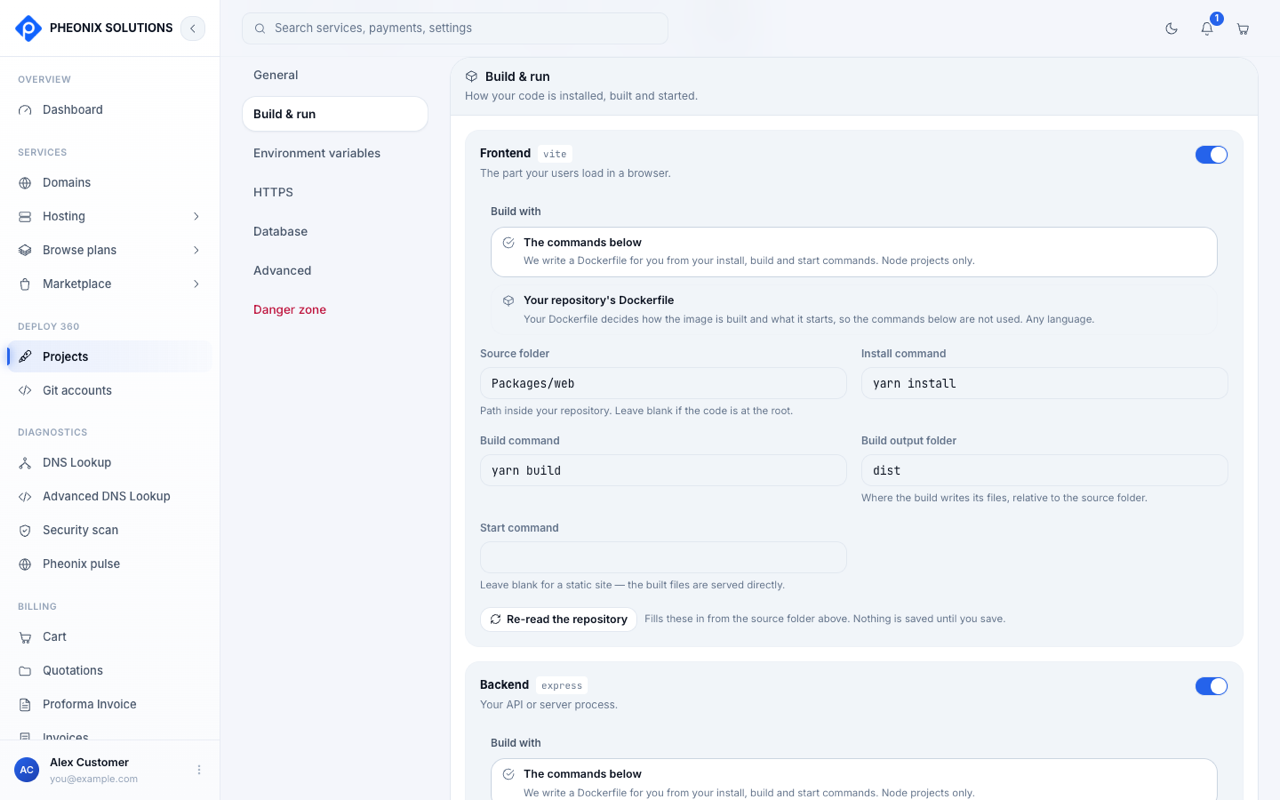
For the frontend and backend separately:
- Build with: The commands below or Your repository's Dockerfile.
- Source folder, Install command, Build command, Build output folder and Start command.
- Health check path and Port (backend).
- Re-read the repository: fills the fields in again from the source folder. Nothing is saved until you save.
Use the toggle next to Frontend or Backend to turn that part on or off.
Environment variables
Variables are injected at build and run time. They're marked Saves immediately, and take effect on the next deploy.
- Add variable: set the name, the value, and where it applies: Both frontend and backend, Frontend only or Backend only.
- Treat as a secret is on by default. A secret's value is hidden everywhere after saving. You can replace it, but never read it back.
- Import .env: upload a
.envfile. You can choose to treat every imported value as a secret, and to remove variables that aren't in the file. - The Active toggle turns a variable off without deleting it.
API keys, tokens and passwords should always be saved as secrets. A variable that isn't a secret is shown in plain text to anyone who can open the project.
HTTPS
Your site is served over HTTPS automatically. We request and renew a free certificate for your address.
Database
The same three choices as the wizard. See Databases.
Advanced
Where it runs shows your site's server and its IP address. You may need the IP to allow connections to an external database.
Danger zone
- Remove environment: deletes the environment, its database and backups. The default environment can't be removed while others exist.
- Remove project: type the project's identifier to confirm. This deletes every environment, every database and backup, and the site's server.
Removing a project or environment can't be undone. Download any database backups you need first.