Deploy 360
Deployments and logs
Open a project from Deploy 360 → Projects. The header shows the environment, its status, the repository and branch, and the site's address.
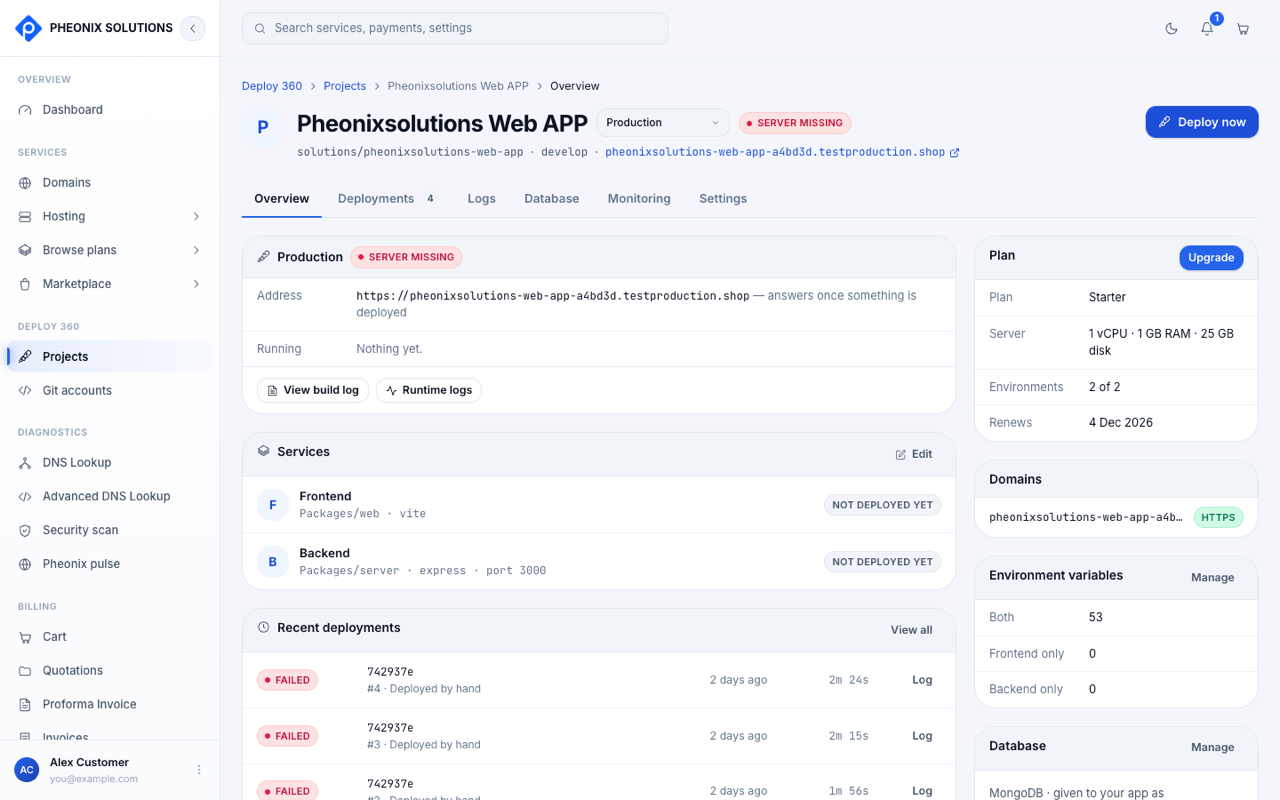
The tabs are Overview, Deployments, Logs, Database (when we run your database), Monitoring and Settings.
Deploy
Select Deploy now (or Redeploy) in the header, or Deploy on the Deployments tab. This builds the latest commit on the environment's branch and puts it live. The version running now keeps serving until the new one is healthy. See How Deploy 360 works.
- Rebuild without cache: builds from scratch, ignoring cached layers. Use it if a build behaves strangely after a dependency change.
- Only one deployment runs at a time per environment.
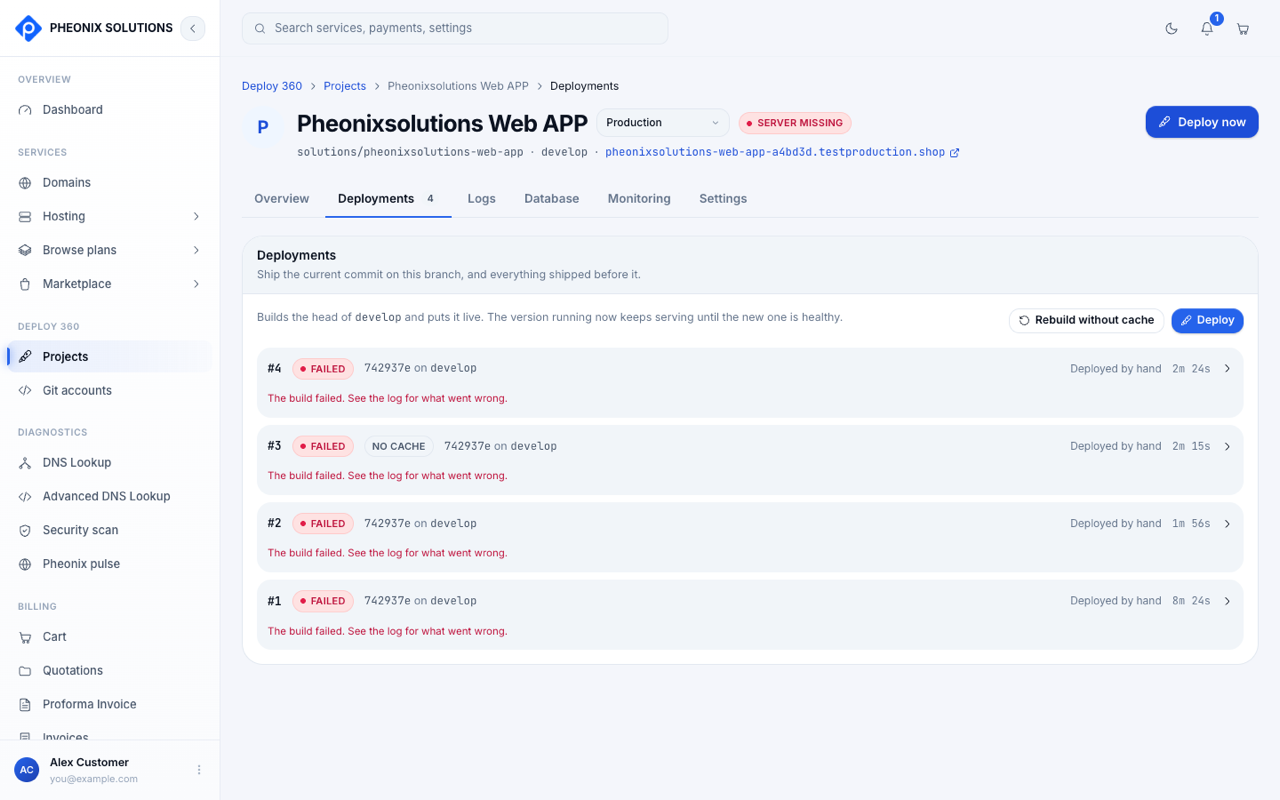
Deployment statuses
| Status | Meaning |
|---|---|
| Queued | Waiting to start |
| Building | Fetching the commit, building, and starting the new version |
| Live | This version is serving your site |
| Failed | The build or start failed. The previous version is still live. |
| Cancelled | You stopped it |
Each row also says how it started, for example Deployed by hand, Rolled back to #3 or Changed by Pheonix support.
Build log
Select Log on a deployment, or View build log on the Overview tab. Tick Follow to watch it live. It includes the server preparation steps on a first deploy, and your app's own output when it fails to start.
- Cancel build: stops a deployment that's still queued or building.
- View commit: opens the commit in your Git provider.
Roll back
On the Deployments tab, select Roll back on an earlier successful deployment, or Roll back to this on its page. The earlier version goes live again in seconds. There's no rebuild, because the built images are reused. The last 10 versions are kept for rollback.
Runtime logs
The Logs tab shows what your running app is printing, read live from the server. Choose Frontend or Backend and select Reload to refresh. Logs aren't stored: when a new version replaces the old one, the old output goes with it.
Environment status
| Badge | Meaning |
|---|---|
| Live | The site is up |
| Deploying #N | A deployment is in progress |
| Failed | The latest deployment failed. An earlier one may still be live. |
| Not deployed | Nothing has been deployed yet |
| Server missing | The site's server no longer exists, for example after a long unpaid period. Deploy again to create a new one. |
| Suspended / Payment due | The plan's renewal hasn't been paid. See If a payment fails. |